





Alright, here we go:
First, make sure you have these programs:
Wings 3d http://www.wings3d.com/
3Dsmax (The trial version works for rendering as well) (If you cant get 3dsmax, try Gmax, I believe it should have the same rendering ability as 3dsmax)
GIMP - Not always needed, but most renders dont look good hot of the press. http://www.gimp.org/
Some GRP conversion software.
---
Part 1: Creating your 3d model
So, have you always been in envy of those mods with the cool 3d rendered units? Well, have no fear, after reading this, you will be able to do the same thing!
Alright, to begin, if you havent already, download Wings 3d. If you have it installed and ready to go, open up the program. You should see a screen like this:

HUGELY IMPORTANT!!!! Wings 3d has some bugs with saving stuff, and occasionally crashes when using the "Save as" function. To prevent it crashing, we must save it before we actually start creating anything. So, go to file>Save As> Type the name in, then hit ok. If it crashes, just start it up and try it again. Note that it will never crash when when you save normally, by just clicking "save" when you are making the model.
Back on track, that screen is pretty plain and empty, right? Lets fix that.
Wings 3d's functions are pretty much all mouse based, so, keep in mind, the right mouse button will be your best friend.
Anyway, the basics of camera control: You press and release the middle mouse button. Wow, that was easy! Now, just move your mouse around to move around the 3d plane. Scroll up or down with the mousewheel to zoom in or out. When you have the camera position where you want it, just press the middle mouse button once more, and it will lock your view, and you can work normally.
Alright, that's it for the camera, lets start making our model!
Right click anywhere on the screen. It should bring up a menu like this:

Select the Cube option. You should now have a nice, fat, juicy cube sitting in the center of your screen.

Now, lets turn this stupid looking cube into one sexy space ship!
Make sure you have Face Select active:

Select the front face of the cube, pointing outward to the Z axis.

Right click anywhere on the screen, bringing up that infamous right click menu. Select "extrude," and then "Normal."((Quick explanation here: If you extrude normal, it will extrude where ever the face is pointing. If you extrude on say, the y axis, it will extrude the face up or down)) Now you will find if you move your mouse, the face will be either extended outward, or into the model. We want to it extend outward.

Save periodically, don't forget.

Next up, we want to bevel that front face. Make sure the face you extruded before is still selected, then right click anywhere, and select "Bevel." Move your mouse around until you get it the way you want.
K, working our way through the varius functions... Deselect the front face by pressing the space bar, or clicking on it again. Now, we want to select the two far faces on the side, or, pointing on the X axis. Now, to select multiple faces in Wings, you dont need to hold down control, or anything, just click on them. Click on both faces on the left and right X axis.

Now, another wonderful function: Inset. Right click with the faces selected, and go down to "Inset." Now, moving your mouse, you will see that this makes the selection you have on those faces much smaller, or bigger. We want to make it smaller, but not too small. Here's about how small you should inset it:

Right, so, these are supposed to be wings on our little space ship, so lets make that selection not as high. Right click, and go to Scale>y axis.(Scale is a huge function, and it can be used for a wide variety of things, experiment with it) Now, moving your mouse, it adjusts the height of your insetted selection. Make it thin, something like this:

k, lets make those wings! Right click, and extrude them, normally.

But they still dont look like wings! Let's fix it. With the two faces on the end of the wings selected, right click, and go to Move> Z axis. Move the mouse until the wings are back about this far, or however far you want them:

Alright, one last thing to do to finish off those pesky wings! With those two end faces still selected, right click, and go to Scale>y axis. Move the mouse until they are like this:

Good, now they look like wings!
Say, this whole ship is way to big and fat. We should change that. Change your selection mode from Faces to whole Entities:

Now, select your whole model. Right click, go to scale> y axis, and scale it until you think it looks right.

Yay, now it looks remotely like a ship designed by drunk engineers! In fact, worse then that, it looks like it was designed by some silly 14 year old kid who has too much time on his hands! Oh wait...
Now, we have one last thing to do: The engine. Switch back to the face select mode, at the top. Select the back face on the model, and inset it slightly.

Then extrude it a bit. Ok, now, select all the faces around the engine, except for the front face.

Now, right click, and select smooth. Your engine should now be circular. Almost done... (Also, the smooth function is very nice, but it also drastically increased the polygon count of your model, so only use it when needed. More polygons makes it harder to texture properly.)
Go to the Edge select mode, at the top.

Make sure you press the space bar to deselect everything before you start this part. See those edges in the back of the engine creating a sorta diamond shape? We don't want those. Select them.

Right click, then go to dissolve. (or you can just hit backspace, that's the shortcut) Those edges you selected should be gone now.
Switch back to face select mode, and select the back face of the engine, where you deleted those edges.Right click, and inset it slightly.

Next, with that face still selected, go to extrude>normal, and instead of making it go outward, this time, we want it to go inwards. Make it go back about this far:

Now, the finishing step! Right click, and go to Bevel. Bevel the face until it looks about like this:

And thats it! Your done! At least, with the basic tutorial. Do whatever you want to make the ship look better, and practice up with making your models. Basically in the tutorial, I wasn't trying to show you how to make something amazing, I was just teaching you how wings worked, and going over the basic functions\modes\ect. The rest of the learning is up to you! So, what are you waiting for? GO MAKE SOME MODELS!
-End part 1.
Part 2 will be on UVW mapping, which is a very advanced form of texturing. (sounds scary, huh? Well, its not that hard, really, as long as you know a bit about GIMP, or photo
JUST KEEP IN MIND! THE FEWER POLYGONS\FACES YOU HAVE ON YOUR MODEL, THE EASIER IT WILL BE TO TEXTURE! Besides, SC rapes the quality of the models anyway, so there really isnt a huge need to make a model more then 400 polygons.
Have fun!
Post has been edited 2 time(s), last time on Aug 19 2008, 9:45 pm by Polaris.
If anything cool is ever going on Skype me up under the name "blarghle"


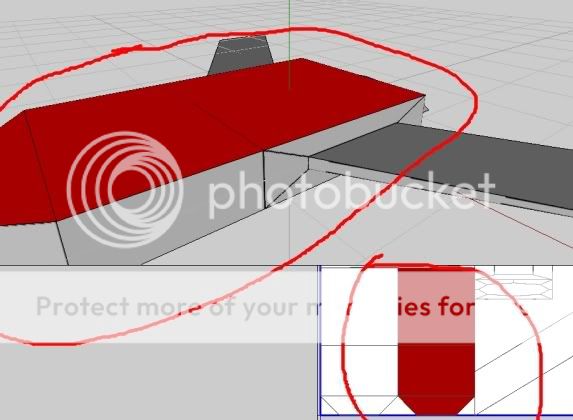
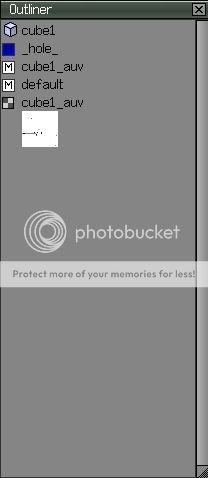


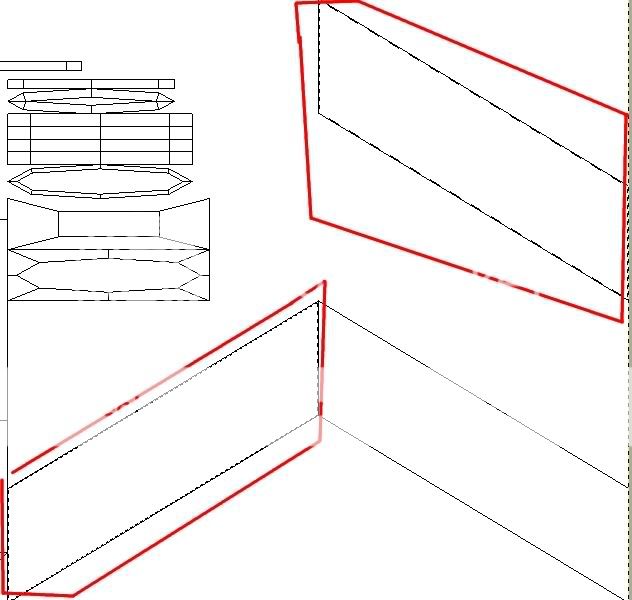

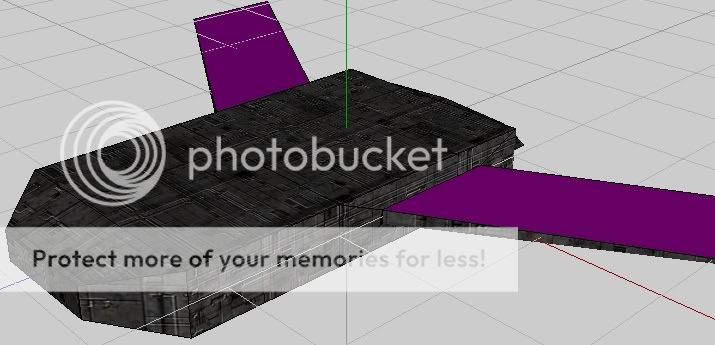



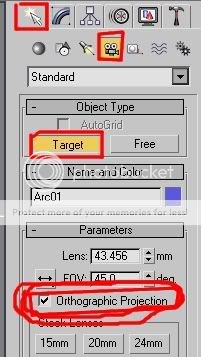
 ) ingame.
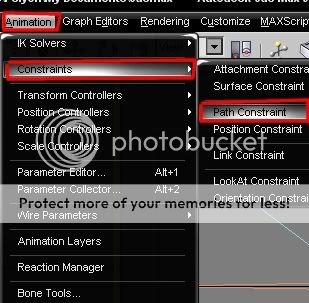

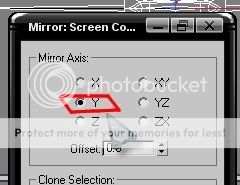

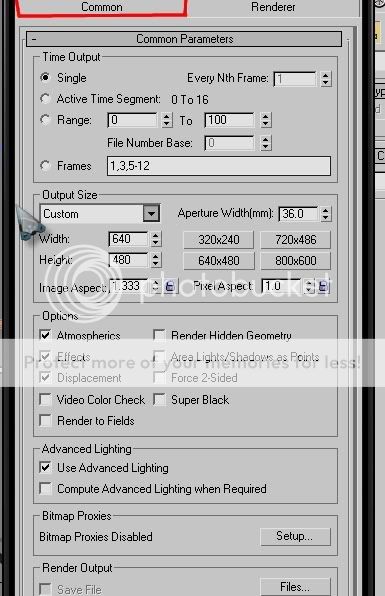



 .
.


 . but i cant make them to grps. (cos my Gimp is defeat) Can somebody hlp me?



 and how did that guy get -963 minerals?