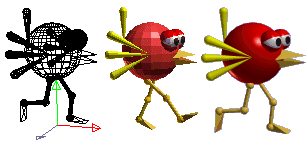
How to Creat Custom SC Graphic, -Restored Tutorial
Post #1 NirvanaJung Jul 18 2008, 2:10 am
Post #2 NirvanaJung Jul 18 2008, 2:12 am
|
The Second : creat a color pallet for RetroGrp to use in Photoshop
1. get palette file from your image in Photoshop Now someone of u could want use palette for RetroGRP If you had follow the first tutorial at above, you have to export as Palette file which is colours informations of ur image notice this, if u wanna get *.pal - microsoft palletethen image mode should Indexed mode currently if present mode isn't that Color Table command will grayed out ok then go to menu as Image -> mode -> Color Table command in Photoshop and then choose save button and type name and select file type as *.pal - microsoft pallete as like below image ( I use Load operation image just refer from it ) http://img98.imageshack.us/img98/8229/53xm.gif (img: failed to get size) ok then you got an Palette file but u should know what is the issue to use in RetroGRP you make sure convert your palette file to StarCraft Palette format (it's own palette format it has different fomat from microsoft pallete *.pal ) Becuzz RetroGRP doesn't support [COLOR=orange]microsoft pallete *.palformat if try to load that in RetroGRP that will Crash Down u guys should use PALEDIT which is editor to convert Palette format between serveral Palette fomats for RetroGrp to use ]2. how to use Paledit to convert for RetroGRP PALEDIT is palette converting Tool to use palette for many image editors and Modding tools it's so Simple to use First , load any Palette format then colours table filled as same Colours of the Palette and then Check save file fomat to set which u'd want fomat ![]() To convert for Retro, make sure check on JASC(Paintshop) or SC (Animation) at the near center of bottom and Save as *.Pal extension ![]() ![]() ![]() ![]() ![]() ![]() |
Post #3 NirvanaJung Jul 18 2008, 2:17 am
|
How to apply SC Palette as to Custom image in the GIMP
Overview alright~! here is Another tutorial for Advanced modder is i found out how to load / matching image with pallet while using GIMP just moment ago as uguys know, GIMP is very good editor to make pixelbased image what is better that's Powerfull and Totally Freeware and smany people try use so this tutorial will very useful for someone who's want make SC gfx with GIMP ![]() ![]() ![]() ![]() ![]() ![]() |
Post #4 NirvanaJung Jul 18 2008, 2:18 am
|
Main Contents of Tutorial
----------------------------------------- The first requirement conditions 1. install GIMP 2. get original BMP of SC from GRP file ------------------------------------------- Steps Adding SC pallet in pallet list of GIMP 1. run GIMP at first ![]() 2. first all, you make sure adding Palette in the Palette list of GIMP 3. file- open an image file which is contained SC Palette information then u can add pallete label in list 4. then appear new window and u can see many menus at top side if it's first time what u open the file in GIMP 5. go to "Dialogs" in menu and select Pallete (hotkey is Ctrl+P) ![]() 6. now u can see pallete list windows , point over at center of blank ![]() 7. and right click then appear popup menu... select "import Pallette..." This post was edited 2 times, last edit by NirvanaJung: Jul 19 2008, 1:16 am. ![]() ![]() ![]() ![]() ![]() ![]() |
Post #5 NirvanaJung Jul 18 2008, 2:20 am
|
8. in Import Pallette window... seclect radio bt "Image file..." in Select source option
9. then you'll see changing Preview if that Preview has show all right , type an name for Palette list at the Palette name box and click [Import] btn then u can see added pallete label in list like below ![]() ok done, now u can use this pallette for image anytimes Set the present palette to listed SC palette When u'd like to creat image from scratch in gimp, set palette to SC palette cause if u does paint without non-SC colours , Probably image doesn't looks same like as your mind in game So it is important pre-set for the starting of your work 1. Before u have save file, make sure change image mode to index mode in GIMP Follow below step to do it make new document or open an completed image file ![]() go to menu[COLOR=#8b0000] - Image -> Mode -> and select [COLOR=#8b0000]indexed .. for changing mode ![]() if present image is already index mode, then turn to RGB ![]() and change back to index you'll see "indexed color conversion" window check "Use custom palette" in the colormap option and click on thumbnail image then appears Palette list which dropdown list Choose one as u'll use SC palette ![]() now~! you must do uncheck "Remove unused colors from final pallette" ![]() it's done, current image changed colours in the same to SC pallette if u want see how it setted colors of the present image, goto Dialogs menu -> Colormap ![]() then u can see present colors what kind image have the colours how does colours look in the pallete preview ? is that same as SC colors now? ![]() if it does, it's the say ok u save the file notice : that could be show different count of row and line but if see number that same to palette set just look propertice of indexed number and u can edit color for each indexed number double click color and appear edit color window then u can change color as u please http://"http://img237.imageshack.us/my.php?image=14pu2.gif" http://img237.imageshack.us/img237/4734/14pu2.gif%20 (img: failed to get size) ///// Remeber that the BMP's for StarDraft SE's GRP Converter are normal 256-color bmp's, RetroGRP uses RLE encoding. ////// So when u have save file make sure set the format for BMP Bonus Tip when u'd painting with color u need to pick only assigned colour in palette u can pick colour with colormap window after change mode to Indexed color try use the colormap window like as color picker ![]() ok, u can make and match image to SC grp with use GIMP Also, GIMP is Freeware,there is no problem to use for make SC grpahics it's really Good for Free user, try this then uguys will love this :beer: i'd like to post links of GIMP tutorials a little bit to this thread there are many tutorials in world wide web so u could make find GIMP tutorials by searching with GooGle ------------------------------------------------------------------ [ Download able GIMP Links ] The GIMP for Windows (version 2.2.13, fixed installer) If this is the first time you're installing The GIMP, you will also need GTK+ 2 Runtime Environment below http://"http://downloads.sourceforge.net/gimp-win/gimp-2.2.13-i586-setup-1.zip" [U]GTK+ 2 Runtime Environment [COLOR=red][U]( for Windows 2000 and newer) This package is required to run The GIMP on Windows 2000 and newer. If you have older version of Windows, install http://"http://gimp-win.sourceforge.net/stable.html#gtkold" instead. http://"http://downloads.sourceforge.net/gimp-win/gtk%2B-2.10.6-1-setup.zip" [U]GTK+ 2 Runtime Environment [U](for Windows 98/ME and NT4) This package is required if you want to run The GIMP on Windows 98, ME or NT4. It is recommended to use http://"http://gimp-win.sourceforge.net/stable.html#gtk" on Windows 2000 and newer. http://"http://downloads.sourceforge.net/gimp-win/gtk%2B-2.6.10-20050823-setup.zip" ------------------------------------------------------------------ GIMP Tutorial of offical site http://www.gimp.org/tutorials/ VIDEO tutorial of GIMP http://video.google.com/videosearch?q=Gimp Grokking the GIMP http://gimp-savvy.com/ GIMP Wiki http://wiki.gimp.org/gimp/ Getting Started with The GIMP http://www.gilesorr.com/papers/gimp-tutorial/gimp.html Searched GIMP Tutorials of graphicssoft.about.com http://graphicssoft.about.com/od/gimptutorials/ Have fun ~! ^_^ ![]() ![]() ![]() ![]() ![]() ![]() |
Post #6 NirvanaJung Jul 18 2008, 2:25 am
|
Gimpshop!
hey guys i found one of good solutions of GIMP while i tired to search the use of GIMP script Basicly i use Photoshop for my work but sometime i use GIMP either to show GIMP users the ways to make SC graphics and somethings Introduction of Gimpshop ![]() The GIMP is the most popular free alternative to Photoshop - available for alot of platforms. Photoshop users have big problems switching because they have a hard time locating Photoshop's features in The GIMP. These Photoshop users get some help now by Scott Moschella's GIMPshop (Announcing GIMPshop). Basically it is just a hack of the current GIMP-sourcecode changing the menustructure, naming and key-bindings to be more like Photoshop. Scott did this for Max OS X, but there are already packages for several linux flavours. Since win32 ports don't really work, I took what I found in the comments of Scott's article and created an installer for Windows (tested on WinXP and Win2k) which should make the installation easy and should work for everyone. Also it is just 7.9MB small (thanks to LZMA compression). It is all you need. GTK is included and all unnecessary files have been removed. These are the gimp-gtk docs, the inlude files and all localization files. The latter don't make any sense, since Scott did the port in English only. Additionally I included the GIMP Deweirdifier Plugin which puts all GIMP windows in a single parent window to keep your Windows taskbar clean. Comparison Screenshots Adobe Photoshop Edit menu: ![]() GIMPshop Edit menu: ![]() Adobe Photoshop Image - Adjustments ![]() GIMPshop Edit menu: ![]() Adobe Photoshop Image - Rotate Canvas ![]() GIMPshop Image - Rotate Canvas ![]() Here a command that functions just like Photoshop’s Auto Levels is hidden in Gimp’s Layers menu and is named Normalize. ![]() Download GIMPshop 2.2.4 for Windows WinXP port of GIMPshop which includes the Dewierdifyer plugin and a Windows GTK theme for that Windows feel. Weighs in at only 8 Megs. Thanks dakira and Hybr1s! if u wanna see more detail then visit official Gimpshop page of here http://plasticbugs.com/?page_id=294 have fun with it~! ![]() ![]() ![]() ![]() ![]() ![]() |
Post #7 NirvanaJung Jul 18 2008, 2:31 am
|
Another Free image editor
- a good enough to use for ur custom image hey guys, i have a good infomation for urs who's want a good free image editor to creat and edit for starcraft gfx this time i'd like to introduce the PictBear which is free software and having Strong functions and Features of paint Today, The Adobe Photoshop is one of widely used image solution Photoshop really have Strong functions and full Features for creating art but it's quite costly much Fortunately, there is one of free software which stand comparison with Photoshop that is the PictBear when i use the picbear at first, i felt it's so analogous to Photoshop interface and Features And i can say that is really equal to Photoshop for the most part Also the why that i suggest it is so Easy to use management of palette that's one of reason what i highly recommend the PictBear for ur custom starcraft gfx Introduction of PictBear Second Edition [/U] Feature of paint software PictBear SE ![]() - It is a free software. - Having Powerful toolset ![]() - Strong customizing function. - Real layer function. ![]() - The reading and writing of GI F/PNG/JPEG is supported. - A variety of image types are supported. - The filter is extensible in the filter plug-in. - The correspondence format is extensible in the plug-in. - Script function to automate processing. - Easy-to-use palette management. ![]() ![]() - It is possible to use it easily with UI without the habit if u want visit official website go through here http://sleipnir.pos.to/ but i uploaded my Pictbear installer files since someone said it doesn't work for changing language japanes to english there are 2 installer versions with rc3 and rc5, if it does work with english try to install RC3 at first and upgrade to RC5 then it could be works ( i tried it serveral times and i made it work for changing to english ) My Pictbears link : ( you have to wait a sec to see download button at the link ) http://www.savefiles.net/d/bd3p3h3mk448.html The PictBear made by janpanese so basicly most website writen with japanese text Notice : if u try install it, when installing it will show error msg window at last, that why is installer try install script file with janpanese text Probably if ur windows not installed japanese language system that will appears with that message Anyways when it shows you with error msg or not just click ignore and pass that step that is not big deal just click to ignore every times and when u try run it first time should choose used language to english How to make matching palette for custom image 1. first off u need to get palette information from SC image or Act file(kinda a palette format) 2. To get palette information open custom image which have palette information of StarCraft unit ![]() Notice : when u try open BMP file which exported BMP by Retro GRP that would be can't load BMP into PictBear interface i don't know why that can't Retro GRP's BMP file , what i can think the reason that maybe Retro GRP decompiler dump out the BMP with something different format with other So if want load what exported from RetroGRP u should resave by other Tools such as MS-Paint or sometihng if don't want resave with anyother tools then u should get BMP file from StarDraft-GRP editor or SF's GRPeditor or CV5 tool[/U] 3. Anyway if load image done, go to menu into image - Palette - Edit palette.... ![]() 4. then u can see the image of palette information in Edit Palette window if u want make palette file with current propertice, click Save.. button ![]() and give the name as u please such as Sc_unit_default and i suggest palette format to ACT format 5. now u can use that Act file when u need load palette for ur any images 7. To replace colors with SC palette, now open any custom image on Pictbear, ![]() and go to menu into image - Image Type and select Index color... then appear a index color dialog , select custom in palette list then u can see the image of palette information in Edit Palette window 8. click Open.. button and choose Act file, which palette for each kind of image 9. if ur palette load done, click ok button if u want replace palette in during anytime then go to menu to image - - Palette - Edit palette.... ![]() and as same above, click Open.. button and choose Act file, which palette for each kind of image 10. if u want use layer funtion for creat easily and effectively u should change image mode to Full color... ![]() 11. To Paint from scratch with SC colours, select menu to File - New , and appear new image dialog set image size to fit ur custom unit and set type to index color (if u want use layer funtion then change image mode to Full color...) Background color just set as u please (i suggest black background but white is fine ) 11 . if change image mode to index color... u should load StarCraft palette and pick color to paint color with brush but if u set Full Color ... that unable use specific palette So u should open another SC cutsom image which haved a StarCraft palette and in both opened images , activate an SC cutsom image and select color in the palette pannel ![]() and activate ur working image and paint color ![]() and save as BMP file finally Aight, we had find out what is PictBear and what we can do with it for Starcraft custom image i think if uguys don't have Photoshop or Paintshop and anyother commercial use softwares I highly recommend it, it's really good enough to use for creating custom image if u want have it , get from links Official link : http://sleipnir.pos.to/ i uploaded my Pictbear installer files since someone said it doesn't work for changing language japanes to english there are 2 installer versions with rc3 and rc5, if it does work with english try to install RC3 at first and upgrade to RC5 then it could be works ( i tried it serveral times and i made it work for changing to english ) My Pictbears link : ( you have to wait a sec to see download button at the link ) http://www.savefiles.net/d/bd3p3h3mk448.html Have fun with this This post was edited 9 times, last edit by NirvanaJung: Jul 22 2008, 1:42 am. ![]() ![]() ![]() ![]() ![]() ![]() |
Post #8 NirvanaJung Jul 18 2008, 2:35 am
|
Get realized out the colours of SC-Special Palette/colors
introdcution `hey guys~! i have an Good news for urs in here ! especialy this thread good for graphic modders who's want know about use the Special palette for creating Custom Graphics what is good news?... alright~! listen ..... May many of you have been wondering that about using colours of SC special pallette, right? and ditto here Basically... when have decompiling the thingy/*.GRP to BMP there are many of another colours Which GRP are explosion / special effect / particle / flames / lights effects ....etc.. mainly when you've got decompiled BMP's , u couldn't see colours correctly on image Also some of images are looks very weird like as inversed colours cause they containes just an Default SC colors So thay doesn't look as like in game gfx i had to find out their correct colors and i used other way, that way is Reverse thinking of pictorial pallete what is that mean?... here going details.........it's really an funy way if u read my thread about pallette , u know about principle of pallette already ok.. then what i had use which way?... i just made GRP with the picture which looks same as SC pallette just like this... take look Right~! its the image there is an pictured object which does look same of pallette colours and this image compiled into GRP so then if that used for Terran's Command center or anothers ...whatever... that GRP will Displayed as the picture like as pallette that's an kernel of my method what i how to found out the special pallette ~! in images.dat properties of Datedit/Asnall3,Zero, there is settings about pallete i used special image unit\thingy\TbangX.grp and another explorsion GRP too and I had set that images uses Special pallete and uses speical colors of palatte propertices uguys can see that in DatEdit/ Arsenal3,Zero... ![]() as like above reference image, uguys try to set image has use special palette for owns and give an special color saved images.dat file into MPQ After change the settings like that so then that Command center will Displayed colors with used palette and colors like this.... i just ran SC-Map editor cause that is best way to see as same in game ![]() it's kinda Reverse the preview if someone have been know about the palette rule , everyones could get that way already StarCraft has process previewing colour with another palettes so it could got these Special palette pictures http://img300.imageshack.us/img300/8273/21yz.gif (img: failed to get size) Bascially... Special palettes and each palettes are used for specific thingy effection gfx in the with quote from the settings name of Datedit, Actualy, most thingy images are uses types as 9-use special and EMP Shockwave (Atcually EMP is no necessity to know , thats much enough to get know by use Basic palette) and there are colours types 1. orange 2.Green 3.Blue1 4.Blue2 that's all need things most thingy\*.grp are uses 9 - Special palette and each own colors 1. orange is used most Terran's explosion / glow / flame / etc... 2. Green is used most Zerg's explosion / weapons, magic effect / etc... 3. Blue1 is used deffensive Matrix and Protoss's glow / etc... 4. Blue2 is used most Protoss's explosion / flame / etc... so i had refer to Displayed images which shows up GRP image in the Map editor I was edit all colours value of the palette as nearly to each Special palettes here is special palettes which had dig out near Special palette take look~! SPECIAL / YELLOW ![]() SPECIAL / GREEN ![]() SPECIAL / BLUE 1 ![]() SPECIAL / BLUE 2 ![]() but uguys realised out which coulours are different a bit from Disaplyed GRP in comparison with this http://img300.imageshack.us/img300/8273/21yz.gif (img: failed to get size) it is yellow colors ![]() what could u see the different ? there is a few differece colors from Referenced palettes Take a look the colors of the first horizontal line I had change from #1 till #14 colors cause those indexed numbers are applied to opacity from Background and 4th line, #32~#36 color is opacity too So palettes dirve for see the opacity as good and easy if someone would like to creat or edit Explsion gfx as different appearanced looks but make sure notice most colours has own opacity rate against to Background colour a little bit in game SC that's the special feature of Palette property for example, here are images which are applied as Default/Default and special / yellow just take http://javascript<b></b>:flink( look Default ![]() yellow ![]() How they does looks ? As ugus Seen, yellow is nearly correct to essential colors Baically... that reference images are makes understand to which about rate of opacity cause I had use background tranceparence color as R0 G255 B0 and opacity colors is more darkness than backgrond the Opacity colours are more darkness and opacity rate is getting down from each other so in a yellow palette, that shows gradient darkness with Green and on 4th line too greenness set is my color set for understand to rate of opacity But Remember about this issue, Special palette has use Only 36colors with 4 lines of the palette im not sure why they are use like that but when i had use all colors for the reference picture Game does Crashed i guess the special palettes are just used colors as that limit Note: This maded palettes are not correct as Game Screenshot to totally but Colours are nearly correct Original colors which showed in game SC and notice about opacity colors, make sure handle that for making gfx as well as artlessly alright~! that is a general idea of Special Palette and other speical palettes are same I'd like to show urs which replaced colours like as Actual Special colours of the Effect graphics ![]() ![]() ![]() ![]() ![]() ![]() ![]() ![]() ![]() ![]() ![]() ![]() |
Post #9 NirvanaJung Jul 18 2008, 2:39 am
|
Looking for around 3d Grahpic tools
Introduction Welcome, here is a tutorials to dealing solutions with the 3d Grahpic tools for creat custom units/buildings and Animations(not iscript.bin) These tutorials would enable you to understand around in the creation of 3d grahics to convert as StarCraft GRP Before begining... are uguys like creating own custom unit sprite ? and r uguys creating all images with inconvenience ? then u guys should work with use 3d tools, cuz most unit are divided with 17 turned images and their figure of angles are defferent each other by difference viewpoints u guys might draw and paint ur units if u work in just 2d image editor but u could make works each all 17 angles by just creat at once with use 3d tools aight then, let's look around 3d editors Professional Solutions 1.3DSMAX 3dsmax is Professional Media & Entertainment Solutions for Game Graphics,3d Animations, creative and media professionals productive feature set designed to accelerate workflow, 3ds Max is the leader in 3D animation for game development, design visualization, visual effects, and education. Also, that is most popular software of 3d creative ![]() 2.Maya Maya Complete integrates the world's foremost Create superior digital content, modeling, animation, visual effects and advanced rendering technologies into one complete workflow solution. It's the world’s most comprehensive 3D software especally Maya most popular in film industry film King Kong,The Da Vinci Code created sepcial visual by Maya that's rock in the 3d creative 3.XSI-Softimage the character production software. Featuring completely non-destructive workflow, XSI makes life easier by enabling changes on rigged & animated characters and Creating High-Quality Characters especally, Half-Life2 is created all contents by used XSI-Softimage but u guys have to know this, 3dsmax and Maya so expensive price to buy so many of u wanna low cost or free,opensource 3d edit tools and besides, have to got Very good functions and capability but don't worry about that, there are many Free 3d creat tools and Also they got so many good functions and friendly UI Free 3d creat tools 1.Gmax - i want to highly recommend this tool for begining 3d software it's called small 3dsmax cuz if u wanna more capacity tools like 3dsmax then get G-max it's totally same tool with 3dsmax and also that's all free Also Gmax buited by 3dsmax developer of staff but if u when rendering images to files u have to get renderer plugin that's different of function from 3dsmax follow this url then u could get that offical Gmax offer site : http://www.turbosquid.com/gmax Gmax free renderer Script : http://kupio.lunarpages.com/%7Etru7h02/halo/gmax_render/ 2.blender Blender is the open source software for 3D modeling, animation, rendering, post-production, interactive creation and playback. Available for all major operating systems under the GNU General Public License. it's quite capacity tools for ur creation of 3d Art especally it's features available Render to images and Animations as any format but that didn't got friendly UI so u guys might be confuse in UI and configurations that's just ur job what need to figure out offical site : http://www.blender.org/ 3.xsi modtool The SOFTIMAGE|XSI Mod Tool gives you full access to all of the professional character creation features available in the industry's only completely non-destructive character workflow?SOFTIMAGE|XSI. This free game modification utility guides 3D professionals, as well as experienced modders and novices, through all of the features and functionality for building and texturing artwork in XSI and for creating and rigging characters, props, and environmental elements. Use the Mod Tool to mix and blend animations or render interactively and then simply export the models to your game. but XSI Mod Tool features unailable Render to images and Animations as any format that just available export the models as each 3d format with use exporter plugin,script so may got some screen capture program offical site : http://www.softimage.com/community/xsi_mod_tool/default.aspx [COLOR=#000000]4. Anim8or Anim8or is a 3D modeling and character animation program that is not as a commercial endeavor While it is far from a complete professional level application like 3DStudio MAX or Lightwave, it has enough capability to be of use to others[/FONT] ![]() Features 3D Modeler - Create and modify 3D models. Built-in primitives such as spheres, cylinders, platonic solids, etc.; mesh-edit and subdivision; splines, extrusion, lathing, modifiers, bevel and warps, TrueType font support - 2D and 3D extruded text for any TrueType font. OpenGL based real time operation, Import and modify .3DS (3D Studio), .LWO (Lightwave), and .OBJ (Wavefront) object files, Export .3DS files, Built in 3D Object browser, Jointed character editor, Morph targets, Anti-aliased software renderer for high quality, production quality images, Create 3D scenes and animations and output .AVI movie files, .JPG and .BMP images, Supports textures, bump maps, soft shadows, spotlights, fog, and much more, Texture support for .BMP, .GIF, and .JPG format files, Print images of scenes and models. OpenGL shaders for realistic previews. Scripting language. Plig-ins for parameteric shape and object export what is the merit of it.. it's able to render image as image file for your works mostly free-professional level 3d softwares aresn't support rendering feature but it's give u chance to have rendering throgh there offical site : http://www.anim8or.com/main/index.htm accessory tools 1.CamStudio (Free opensource) ![]() CamStudio records screen activity from your Windows Desktop into standard AVI movie files. It is an ideal tool for developing videos to demonstrate features of a new software or any other task that requires the capture of desktop activity. The program is easy to use, and you can select an area or full desktop for recording. You can adjust the video quality settings to reduce file size, use custom cursors and add a soundtrack through your microphone or speakers. Furthermore, you can add screen captions to your desktop while recording. These captions are anti-aliased, high quality images that support text display in multiple languages. What is better.. this totally Free~! offical site : http://www.camstudio.org/ aight~! we had look around 3d Grahpic tools and Free opend solutions Next time, i'd explain around more information of Free stuffs Cya~! and enjoy it ! This post was edited 1 time, last edit by NirvanaJung: Jul 18 2008, 2:44 am. ![]() ![]() ![]() ![]() ![]() ![]() |
Post #10 NirvanaJung Jul 18 2008, 2:54 am
|
1. the Using of GMAX to proceed ur custom graphics rapidly
Introduction: Welcome to Modding with GMAX . You'd be reached the largest collection of 3d sftuff tutorials out there. I've written these links of tutorials from as remember Hopefully this will makes useful for make 3d grahpics look more advanced. especllay Aircraft and all turned around units what contained 17 each degrees in GRP file Note : basically Gmax unailable Rendering ur 3d model into 2d image files such as bmp,jpg,gif,pcx,tga etc... so u have to get other third party redner utility i'll Explain about that this GMAX section first off, To download gmax, visit the http://www.turbosquid.com/gmax and to start gmax,u should register gmax if Registration code not working or didn't arrived then visit here http://www.turbosquid.com/Forum/Index.cfm/...tThreadID/15975 and have any question of GMAX just visit here http://www.gmaxforum.com/ GMAX Tutorials [/COLOR if u coudn't follow steps to get Running GMAX then just follow this Flash video tutorials http://pages.infinit.net/browser/Tutorials...ation_Guide.swf note: u guys have to Remember this Basically gmax and 3dmax is same tools both give u same layout and configurations So probably u guys would make figrue out by practice just 3dsmax tutorials Guide to starting with gMax http://www.simviation.com/gryphon/tutorials/gMax_00.htm Gmax Rolling Stock Tutorial http://www.worldoftrainz.com/index.htm Gmax Tutorial Introduction document file http://www.fileplanet.com/122467/120000/fi...al-Introduction Tutorials: GMax Basic SC4 Wall Creation, GMax Curved Wall, Curved Window, Roof, Trim and Texture, Creating Arched Windows, Modifying Solid Objects, Texturing - a step by step guide, and more. http://couchspuds.homestead.com/Library4.html News and Announcements, Essential Gmax Tools, Using Gmax with UnrealEd 3.0, Maxscripts, Tips and Tricks, Tutorial Bank, Gmax to 3D Explorer, and much more! http://www.davidhsmith.net/gmaxindex.htm modelling and texturing(paint ur modell) Couchspud's Freeland 3D Stuff http://couchspuds.homestead.com/Library4.html GMax Tutorial based on MaxisBrian's tutorial http://couchspuds.homestead.com/files/gmaxbasic.htm DarkMatter's Simtropolis gmax Tutorials http://www.simtropolis.com/forum/messagevi...8&enterthread=y DarkMatter's Simtropolis Guide to House-Building in gmax http://www.simtropolis.com/forum/messagevi...7&enterthread=y Lord_Quillian's Simtropolis Tutorial on Night Lighting and Night Windows http://www.simtropolis.com/forum/messagevi...2&enterthread=y Deadwood's Simtropolis B.A.T. Texturing Tutorial for Photoshop Users http://www.simtropolis.com/forum/messagevi...8&enterthread=y JoshuaC's Simtropolis EZ Skyscraper http://www.simtropolis.com/forum/messagevi...4&enterthread=y Gmax - Texturing Part 1 http://airspace.uhk.cz/mlk/msfs/tutorials/...xturing_01.html Let's make train 3d with gmax http://www.geocities.jp/yuuchankellyy/gmaxe.html Gmax and 3dmax Video tutorial http://www.fileplanet.com/filelist.aspx?s=91443&v=0 Modeling a P-38 Lightning Fighter http://www.flightsim.com/cgi/kds?$=main/howto/gmax.htm GMAX Tutorial - Texturing http://airspace.uhk.cz/mlk/msfs/tutorials/gmax/index.html UVWmapping and 2d art work ('skinning') http://www.quake3bits.com/htm/tutorials/gm...lling_with2.htm Gmax Essential Tools http://www.davidhsmith.net/Essential_Tools.htm Gmax scripts search listed site http://www.scriptspot.com/start.asp?p=main...earchField=gmax total 3d graphics informations and community http://www.3dbuzz.com/vbforum/sv_home.php http://forums.cgsociety.org/ http://www.3dtotal.com/ http://www.3dm3.com/ 3dgame resource site http://www.psionic3d.co.uk/news.php custom 3d Game models Most FPS 3d game custom models http://boards.polycount.net/ubbthreads.php WarCraft3 custom models and modding tutorials http://www.wc3sear.ch/index.php Rendering Gmax 3dmodel to images note: if want images of ur model in Gmax, other one third party renderer is here u might read attentions and pick one's steps if haven't experience of GMAX and third party redering softwares http://kupio.lunarpages.com/%7Etru7h02/halo/gmax_render/ * Update : 2006/09/07 JKA: Simple Sword Modelling Tutorial- FileFreak Forums http://www.filefreak.net/archive/index.php?t-159.html Modeling a P-38 Lightning Fighter http://www.planesimulation.com/gmax1.htm - How to creat GENERIC models http://www.psionic.pwp.blueyonder.co.uk/tu...wpoly/gmod.html note: this tutorials are written for Milkshape3d(not Gmax and 3dsmax) but all 3d software same from eachother almost close they are have most silmilar toolset and funtions and same use way So just refer this tuto then u could make like that with use GMAX and 3dsmax Authour is http://www.psionic3d.co.uk LOWPOLY TUTORIALS and PHOTOSHOP TUTORIALS for Creat Game Art http://www.psionic3d.co.uk/page.php?3 Modelling Video Tutorial note : To get these Videos should sign in [COLOR=#yellow]http://www.fileplanet.com/ Account and login at first I. Modelling modelling the pink DOOM demon modelling a head from photo reference modelling a head modelling another head part 1 modelling another head part 2 modelling another head part 3 modelling another head part 4 Modelling a low-poly head in 3ds max 5 - Indeo Video Completely modeling and uving a male model modelling a rocket launcher modelling Brom's dumb looking warrior part 1 II. Skinning skinning an ogre head skinning Magdalena's head skinning the Cacodemon part 1 skinning the Cacodemon part 2 skinning the Cacodemon part 3 skinning the Cacodemon part 4 skinning the Cacodemon part 5 skinning a male head skinning Mole's boots skinning the terminator chick's head part 0 skinning the terminator chick's head part 1 skinning the terminator chick's head part 2 skinning the terminator chick's head part 3 skinning a greyscale head sharpening a head skin part 1sharpening a head skin part 2 skinning a male head with a pony tail shading a head skin part 1 shading a head skin part 2 shading a head skin part 3 shading a head skin part 4 skinning a metal panel part 1 skinning a metal panel part 2skinning a metal panel part 3skinning dragonito III. Painting painting a head painting a face shading a metal button speed painting UVW Video Tutorial 1 of 3 -3DSMax ( but GMAX is apply same ways mostly) 3DSMax UVW Video Tutorial 1 of 3 Video training for 3D Studio Max ( GMAX is apply same ways mostly) http://www.simplymax.com/ Ceating a character from start to finish and some other written tutorials http://www.poopinmymouth.com/tutorial/tutorial.htm Rigging in 3dsmax (only first section is free) http://movielibrary.lynda.com/html/modPage.asp?ID=94 http://www.swrebellion.com/modules.php?nam...wdownload&cid=2 ]Unwrapping UVW Textures for model http://world-editor-tutorials.thehelper.net/unwrap.php 3dsmax tutorials page of 3dluvr.com ( GMAX is apply same ways mostly) http://www.3dluvr.com/content/maxedout.php poop's tutorials who's Character artist on Game industry - it's really great tutorials resource http://www.poopinmymouth.com/tutorial/tutorial.htm VIDEO TUTORIAL - MODELLING DEMON CREATURE http://savefile.com/files/49238 i'd like write about how to use this renderer as step by step for Beginers when i free Anyway.... have fun this~! ![]() ![]() ![]() ![]() ![]() ![]() |
Post #11 NirvanaJung Jul 18 2008, 2:57 am
|
NJ's GMAX Additional Files and Tools
I. Wat is NJ's GMAX Additional Files and Tools ? - As i said before it's my collected and modified Setting files and Tools Basically Default Settings are inconvenience a little For examplem many Game modders are farmilar with keyboad controling which similar to Game playing control And repeatedly hotkey are would be better to collected as close from eachother and in my experience, layout colors are would be better to dark as possible for ur eye here goes to introduce detail 1. GMAX's hotkeys are changed to collected as close from eachother uguys probably use hotkeys and there are repeatedly funtions and menus during work in GMAX (eg. Selecting object, Select and move object, Rotate, Uniform Scale Zoom viewport, Panning viewport, Rotate Viewport, Maximizing viewport) those funtions are used repeatedly very much during work and those funtions are most important and frequent funtions So i change hotkey settings to those hotkeys are collected as close from eachother look this image it's manual ![]() Basically i had change hotkeys as same as collection from GMAX's icon Settings here is changed hotkyes set ------------------------------------------------------------------------------------- Q : Select mode / W : select and move mode /E : Rotate mode / R : Uniform Scale mode A : Resion Zoom / S : Pan mode / D : Rotate View / F : Maxmize View / Mininize View Z : Zoom mode 1 : select vertex mode / 2: Edge mode / 3: Polygon mode / 4: Eleme mode ----------------------------------------------------------------------------------- i belive this setting is most close to user's repeatedly using keys collection and it's most easy to understatnd from GMAX's icons collection 2. Added very good modelling extende tools which is MeshTools 2.5 and JJtools Gmax supported third party tools and plugins very much from Gmax developers and Third party programers and Scriptors (but curretly most they are no updates anymore) in many of third Utilities for GMAX , i had collect some good tools for using GMAX What is the Mesh tools ? - Excellent poly modelling toolset built around the concept of using edgeloops as a modelling aid. if use it, ur modelling environment would be more quickly and ur modelling skill would be more raised up Includes the following selection tools: - Convert selection to vert/edge/poly - Select shared verts/edges/polys - Sub object selection grow/shrink - Edge selection tools - edgeloop, edgering, outline ![]() ShowCase Meshtools Note : image is 3dsmax working image but same to GMAX working) Powerful Selectiontools enhance your workflow a lot! ![]() Selection will be divided via Connect... ![]() if uguy get skilled in modelling as well then u guys hope have more extended tools for Free that's Mesh Tools ~! it's Excellent poly modelling toolset Alight have ur mouth waters from this ? if interested in this Toolset Get this File form here :http://cafe.naver.com/ArticleRead.nhn?clubid=12440426&articleid=13&boardtype=L&page=1&menuid=12 II. How to install NJ's GMAX file just copy to GMAX installed path (eg. C:Gmax) and run Gmax, go to Customize menu on top menus select Customizie User Interface ![]() and load nj_* files for each Categories of Interface taps (eg. load nj_hotkey for Keyboard Setting) ![]() As like that, should load my setting files on all Categories (eg.Keyboad / Toolbar / Quads / Menus / Colors ) and when u load setting file on Colors set, should click Apply Colors now ![]() then u will see changed Interface colors And that's not all my gift~! i had collect many of Script files which support importing and exporting many of 3d model format (eg. MDX importer exporter / 3ds file Importer /DXF file importer/ Half-life SMD file importer exporter World of Warcraft M2 file importer / Return to Wolfensitne MDC file importer / Quake3 MD3 file Exporter / OBJ file Exporter) u guys could load many other 3d format into GMAX and exporting to other 3d formats either Have fun this~! if uguys will have practice Creating 3D Art with GMAX as much as well uguys would really like them But i really not sugguest GMAX for get BMP files which Animate models if uguys wanna get pictures of ur models as animate frames Choose other Soloution bcuzz GMAX hasn't multiple rendering funtions there is just one renderer which able to just one images with peace by peace OtherWise, if do Video Caturing for ur models and animating in GMAX u could get all frames to BMP files which images to all animation frames Next time i'll introduce about that Keep ur eyes here ADDITION: Oh~! here is another Tips of MY settings file if uguys will change Backgruond color for GMAX viewport to Black(R:0 G:0 B:0) or Green (R:0 G:255 B:0) then go to Customize-Custom User interface and go to Colors tap and load nj_color_BG000(it's black) and BG02550(it's green) as u want then should change Background colors as u load colors ADDITION: like this ![]() ![]() NJ's Settings file Updeates~! here is my updated files for GMAX User interface i mainly use 3dsmax i have been use that for great years Acutally i'm not use GMAX mostly but 3dsmax and GMAX are almost same .... no i can say both are totally same Software execpt rendering engine anyways So i update GMAX settings file from earlier introduced files update contents is as follows 1.new quadmenus of Meshtools if uguys have seen Meshtools Showcase image from above there are showed Quad menus for Meshtools which arranged as funtionaly i think that would be more good for general user than my first Quad menu settings So i made one as same like that if uguys like that introduced image for meshtools Quad menu update ur files with it take look these images ![]() in Quadmenu there are two Meshtools options 1. MeshtoolsSEL - it's set which Sorted seleting operations of Meshtools ![]() 2. MeshtoolsMOD - it's set which Sorted Modfiy operations of Meshtools note: those images are not 2.5 menus image but almost same to it And someone of u maybe would wonderring why the menu colurs settings are different from Defaultl settings of GMAX i made custom Quad menus's color settings file as same like 3dsmax which Quad menus's colors settings So if u wanna make Quad menu's color settings as like to 3dsmax then update colors set in menu of Customize userinterface How to change Quadmenu's color settings 1. go to menu of Customize->Customize UserInterface 2. click Advanced Options in Quads tap 3. then appear that options window and click [load] button and load NJ_QuadMenus.qmo file which loacated in Gmaxui folder 4. Save as Startup and select ok then ur Quadmenu color settings are be change as same like 3dsmax's colors like this which seen menu's colurs ![]() and i just add hotkey set in hotkey settings file (eg. vertex mode, edge mode, Border mode, polygon mode, element mode and some of modifier operations for modelling ) added hotkeys are as follows u guys should note this if active this modes u should creat one object and turn to editable polygon so u guys could do this modes hotkey : [1] vertex mode [2] edge mode [3] Border mode [4] polygon mode [5] element mode Ctrl+T : Target weld ( if u do modelling, u probably use Target welding operate very frequently) Ctrl+W : Weld ( it's either above ) Shift + C : Connect selected edges / vertices / polys ( It goes without saying ) aight that's it next time if i have free times i would give some example GMAX model files which included texture or animations and bone settings to refering for ur practice with GMAX if wanna get update file take it from here: http://cafe.naver.com/ArticleRead.nhn?clubid=12440426&articleid=13&boardtype=L&page=1&menuid=12 ![]() ![]() ![]() ![]() ![]() ![]() |
Post #12 NirvanaJung Jul 18 2008, 3:08 am
|
here are goes to GMAX/3DSMAX and other software tutorials
it's will going stay here to add link GMAX tutorials for CnC General model note : basicly it is made for CnC General modding but it's not quite apply to only there thinking about 3d making... most 3d works are usual way with same technique so if u read it, probably could apply to ur work Modding Tutorials [LIST] [*]Infantry Modelling and Animation Author: Jaymioz This in-depth tutorial explains how to model and animate infantry for the SAGE engine. A must-read for any modder looking to learn how to model and animate infantry! [*]Skinning 3D Models in RenX/Gmax Author: Luckie This Flash tutorial explains how to skin 3D Models in Gmax (with RenX) for beginners. The visual references provided by this Flash tutorial serve as a great starting point for those looking to learn how to skin models. Modeling Joan of Arc written by Michel Roger http://www.3dtotal.com/ffa/tutorials...c/joanmenu.asp ![]() ![]() ![]() ![]() ![]() ![]() ![]() ![]() |
Post #13 NirvanaJung Jul 18 2008, 3:12 am
|
How to could get render to image for GMAX
- Introduction if u trying to get work with 3d model then i want to highly recommend GMAX for begining 3d software with freeware First off, that is freeware and it's called small 3dsmax cuz if u wanna more capacity tools like 3dsmax then get G-max it's totally same tool with 3dsmax and also that's all free Also Gmax buited by 3dsmax developers but there is weak points, Gmax unailable Rendering ur 3d model into 2d image files such as bmp,jpg,gif,pcx,tga etc... so u have to get other third party utility to get rednering i'd like to tell here a bit solutions to get rednering for 3d model of GMAX 1.Capture screen - it's most essential method to get images for ur work i won't tell specific steps, just capture screen and paste into image editor and have change image size to fit Standard size of SC grp file 2. GMAX to Yafray exporter script - u can get rendering from GMAX script which third party script to get a know about that try read the introductions and tutorials from here http://www.geocities.com/kam_b_lai/yagmax/ya_g_max.htm 3.render from other Free 3d tools - if u annoying to Capturing and using Yafray exporter script or something try to use another 3d tools to just rendering to image for ur model there is one of good free ware which able to render as image file for your works i recommend Anim8or to another tool to use for just rendering ![]() offical site : http://www.anim8or.com/main/index.html mostly free 3d softwares of capabilited tools aresn't support rendering feature but Anim8or give u chance to have rendering throgh there and u can get rendering so easy and intuitively To getting render on Anim8or first, u should convert 3d model as *.3ds file through GMAX and import converted 3ds file to Anim8or workspace then u can render ur model through Anim8or that's general steps to get rendering for ur model if u wanna know to more detail then try get tutorials from anim8or website This post was edited 1 time, last edit by NirvanaJung: Jul 18 2008, 3:18 am. ![]() ![]() ![]() ![]() ![]() ![]() |
Post #14 NirvanaJung Jul 18 2008, 3:19 am
|
StarCraft 3d model Collection for WarCraft3 MDX format
Introduction first, its not tutorial post, i'd like to just give some of utile stuff to here This SC 3d collection is collected from WC3-SC conversion pack its made for WC3 mod, however it could import model into GMAX,3dsmax,Milkshape3d and etc.... so if u wanna have Starcraft units for 3d model then try get use this collection but remember its collected from http://www.wc3sear.ch/ it's not mine uguys should notice that make sure use custom WC3model source for only reference of ur work if u wanna use those models without any editing as different aspect for ur adapt then probably u should get allow Permits are required for use that from own producer ----------------------------------------------------------------- if u wanna know how to import those model file into GMAX / 3dsmax then take read above of this thread then have fun with it, try make ur custom SC unit with this collection Download link : Starcraft 3D Conversion unit MDX-Pack Starcraft 3D Conversion unit MDX-Pack 1/2 splitted file Starcraft 3D Conversion unit MDX-Pack 2/2 splitted file ![]() ![]() Note : the file format is 7z it's another zip file so if u dont have any able extacting tools for 7.z file get this 7zip to use from http://www.7-zip.org/ This post was edited 1 time, last edit by NirvanaJung: Jul 18 2008, 3:24 am. ![]() ![]() ![]() ![]() ![]() ![]() |
Post #15 NirvanaJung Jul 18 2008, 3:26 am
|
The small tutorial to have recoluring with colour mode
it's written for who want know technique to give a tip about change colour to image and i decided to write this after seen the thread Request for GRP's but this usage apply to Adobe-photoshop cause i have working with there right now sorry~! but it could be apply to other editors since most image editors are have a similar features and menus to working for each purposeif u get the hang of ur editor then probably should work with this example becuzz this working isn't totally different principle, it's uses with quite common principle of most image Manipulation aight then here we go~! [showcase image] 1. open original image ![]() 2. now i'd change background colour as green to distinguish colors more easily to have change bg go to image in the menus and select - mode - Colour table then appears colour table and pick first colour in the table and change colour to R:0 G:255 B:0 ![]() 3. u can see changed background colour, it's very useful way to start editing cause if bg is black type colour then it could be uncomfortable to distinguish colors aight then now we need to select only non-team colours to except from changing colours becuzz when u try change colours for unit/building need to notice that team-colur shouldn't change to other colours if changed them unit doen't show team-colours in the game to except team-colours in image, change image mode to RGB colour mode and u need such a advance menu then now go to Select menu - colour range preferably u guys better to zoom in to see working image as more bigger and u can notice there is eyedropper icon over image when colour range window show on pick one of most used team-colour like this ![]() and set fuzziness value to about 100~150 then team-colours are selected with selection area ![]() now u need to add selection with background pick magic wand tool in the toolbar ![]() and keep pressing Shift key and pick background in image menwhile shift key pressed then bg added into selection group ![]() now u need to inverse selection to select only object colours use hotkey with Ctrl+Shift+ i then u can inverse selection now the selection has apply to only guadian's body to change colours for body, now copy and paste that selected body to new layer use hotkey with Ctrl+C and Ctrl+V then u can add newlayer with only body go to Image menu and select Adjustment - Curves... there is channel dropdown list in Curves window select red channel and move down curve to diminish red colours in picture ![]() the reason why i had change colour, i want turn colours to blue now select blue channel and move up curve ![]() then colours are turned as blue ![]() it is just litte part of example just refering it to get the knack of image editing here are some of example which are turn colours to different ![]() How to apply specific operate to bunch of image files to automatic batch without doing one by one now, i'd tell about Automated way to apply ur infrequently working this usage apply to Adobe-photoshop either However, u may could find Automated way in ur image editor Instructions for running a batch process in Photoshop. Useful for resizing and infrequently used editing a folder of images for the GRP file Can also be combined with the recolouring and many other process aight then just follow this steps 1. now open ur image or new document 2. when u go to infrequently used editing which same options for image Choose Windows > Show Actions and Click on the folder icon on the bottom bar of the Action window New Set the new set window opens http://xs411.xs.to/xs411/07051/img07.gif (img: failed to get size) 3. i'd like to Name the set as for GRP and Save the Action Set in a folder from where it can be retrived later, If an Action is not saved it will work only on a single machine. 4. Click on Create New Action under for GRP set 5. The New Action window opens then Specify a new action name Recolouring 6. click Record. By clicking on the record command all the steps gets recorded under the action name Recolouring http://xs311.xs.to/xs311/07051/img08.gifhttp://xs311.xs.to/xs311/07051/img08.gif (img: failed to get size) 7. now Automated recording is ready then now do editing for image same as above tutorial which about recolouring 8. make sure stop the action recording when ur all operating finished for image 9. All the steps to be recorded in Actions is completed In the Action window in the bottom bar, click on Stop 10. The action steps in the action window will appear as shown in the below image http://xs311.xs.to/xs311/07051/img20.gif (img: failed to get size) Steps run Automate Batch 1. The Action is ready, to run this action in the folder which there are image files, Automate > Batch has to be used. 2. Close all the images open on the stage, then Choose File > Automate > Batch then The Batch window opens 3. In Set > Select the for GRP set from the drop down. In Action Select the action name Recolouring and In Source select folder from the drop down Click Choose and select the Folder The folder path is displayed as D:/GRP/guadian (path will be dependent as per the users choice of saving folder) To specify a Folder name where the finished files will be saved. choose Folder In Destination Click Choose and select the folder path where the files has to be saved 4. The folder path is displayed as D:/GRP/guadian (path will be dependent as per the users choice of saving folder) 5. At the bottom of the window in Errors choose Stop For Errors, in case of any errors the process will be stopped and notified. 6. After all the settings as shown in the below image. Click OK http://xs311.xs.to/xs311/07051/img21.gifhttp://xs311.xs.to/xs311/07051/img21.gif (img: failed to get size) The images from the D:/GRP/guadian folder will automaticaly open the action will run and get saved in Destination folder named finalimages This method becomes very easy when there are many images and a common effect has to be applied to all the images Have fun with it This post was edited 2 times, last edit by NirvanaJung: Jul 18 2008, 3:40 am. ![]() ![]() ![]() ![]() ![]() ![]() |
Post #16
ShadowFlare
Jul 18 2008, 6:54 am
|
As far as those special palettes, the number of colors you are allowed to use is only limited by the size of the pcx file used for the translation table for the palette. If you extend the image, more colors can be added to it and SC will use them.
And for .grp converters, other newer ones are much more reliable than RetroGRP. There's my converter, SFGRPConv, and there's also pyGRP, which also works and supports Windows, Linux, and Mac (among others). ![]() ![]() ![]() ![]() ![]() ![]() |
Post #19
O)FaRTy1billion
Jul 18 2008, 7:55 pm
|
.rapsdleF
|
For things about palette, I have assembled PalPack. I havn't made all the special palette colors unique (yet
), though, so right now the ofire, gfire, bfire, bexp, trans50, and shift are only useful for viewing.Also, stickied. ![]() ![]() ![]() ![]() ![]() ![]() TinyMap2 - Latest in map compression! [ 8/26/12 - New build! Potentially fixed Win7 crash ]
EUD Action Enabler - Lightweight EUD/EPD support! (ChaosLauncher/MPQDraft support!) EUDDB - topic - Help out by adding your EUDs! Or Submit reference files in the References tab! MapSketch - New image->map generator! EUDTrig - topic - Quickly and easily convert offsets to EUDs! (extended players supported) SC2 Map Texture Mask Importer/Exporter - Edit texture placement in an image editor! times! |
0 members in this topic (italic members are currently writing a reply): None
+ guest(s)
+ guest(s)
[12:02 am]
[12:01 am]
[11:50 pm]
[11:50 pm]
[11:50 pm]
[11:50 pm]
[11:42 pm]


(WTF.... colours aren't show correctly)


), though, so right now the ofire, gfire, bfire, bexp, trans50, and shift are only useful for viewing.
times!![[close]](/images/up.gif)